

Printers always seem to stop working at the worst possible moment — right before a meeting, during payroll runs, or when you’re trying to print important client paperwork.
If you’re searching for how to fix a printer, you’re definitely not alone.
At Crown Computers, we help San Diego businesses troubleshoot printers every single week. The good news? Many printer problems are quick, inexpensive, and easy to resolve — if you know where to start.
Below, we’ll walk you through how to troubleshoot a printer step-by-step, explain when it’s time to call for help, and share simple tips that keep your printers running smoothly.
And if you’d rather skip the frustration — our managed IT team can diagnose the issue for you and get you back up and running fast.
👉 Need help with printer problems now?
Contact Crown Computers for support:
📞 Call: 858-483-8770
📩 Email: sales@crowncomputers.com
💬 Request help online: Contact Crown Computers
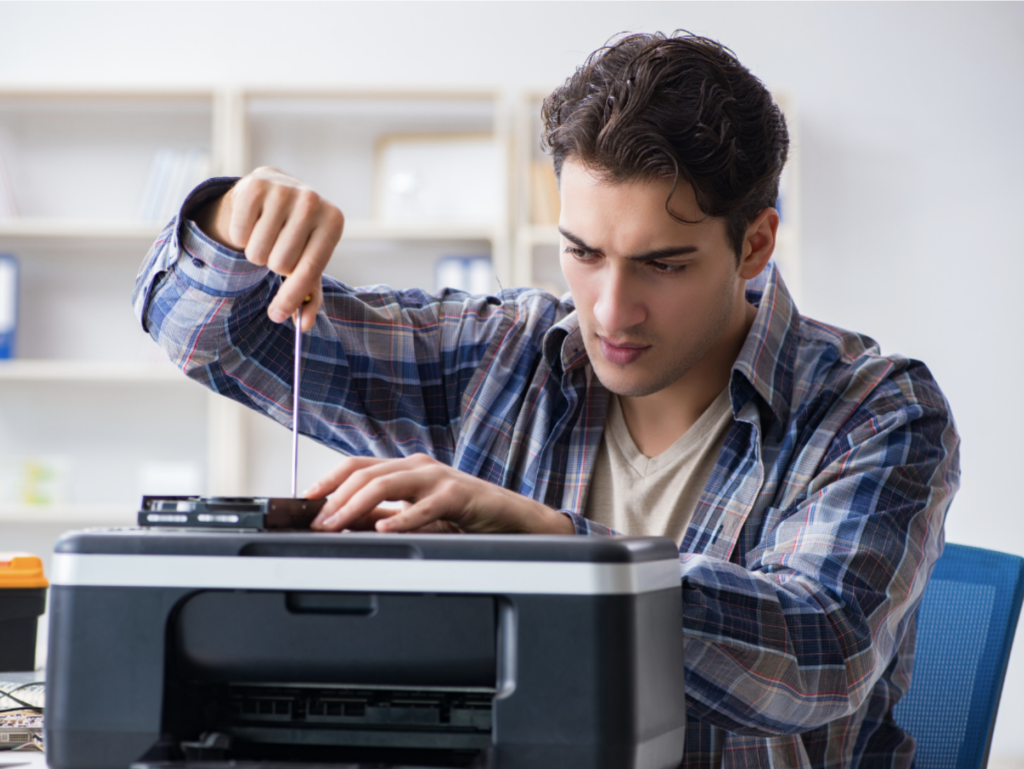
Why Printers Fail (And Why It Always Feels Urgent)
Office technology evolves quickly — but printers somehow remain stubbornly complicated.
Most issues fall into just a few categories:
- Connectivity problems
- Driver or software conflicts
- Stuck print jobs
- Paper or ink issues
- Hardware failure
- Incorrect settings
The steps below cover the most common printer fixes our technicians walk clients through. Try these in order — they solve most problems without requiring a service visit.
Restart Everything (Yes — It Really Works)
Perform a Power Reset
Unplug your printer from the wall.
Wait 10–15 seconds.
Plug it back in and power it on.
This clears temporary glitches and refreshes the printer’s memory.
Restart Your Computer
Before diving deeper, reboot your computer.
Sometimes the computer — not the printer — is the problem.
Check The Physical Connections
Loose cables are one of the most common causes of printer issues.
- Confirm the printer is securely plugged into power
- Check USB or Ethernet cables at both ends
- If using Wi-Fi, try temporarily connecting with a cable to test
If connecting it directly works, your issue may be network-related — something our team can diagnose quickly.
Try Printing From Another Device
Open the same document on a different computer and print.
- If it prints ➝ the problem is with the original computer
- If it still doesn’t print ➝ the issue is likely the printer itself
This is one of the fastest ways to narrow down what needs fixing.
Look for Error Messages or Codes
Many printers display helpful clues when something goes wrong.
Check:
- The printer screen
- Your computer’s printer status window
- Any blinking error lights
If a specific code appears, search it online — or send it to our team. These codes almost always explain exactly what’s happening.
Clear the Print Queue
Sometimes a stuck print job blocks everything behind it.
- Open Devices & Printers
- Double-click your printer
- Cancel any stalled or pending jobs
Once cleared, try printing again.
Bonus tip: If you’re in an office environment, another user’s stuck job may be stopping everyone else — ask around before clearing the queue.
Make Sure You Selected the Right Printer
This one surprises people.
In many offices, printers have similar names — and it’s easy to click the wrong one.
Double-check that you’re sending your job to the correct, online printer — not an old or offline one.
Renaming printers with clear labels like “Front Office Canon – 2nd Floor” helps prevent future confusion.
Update Your Printer Drivers
Outdated drivers can cause major headaches.
To update:
- Open Device Manager
- Right-click your printer
- Select Update Driver
- Choose Search Automatically
If your printer is older, the manufacturer website may have the correct driver.
Regular driver maintenance is included in our Managed IT Services — so our clients rarely experience this problem long-term.
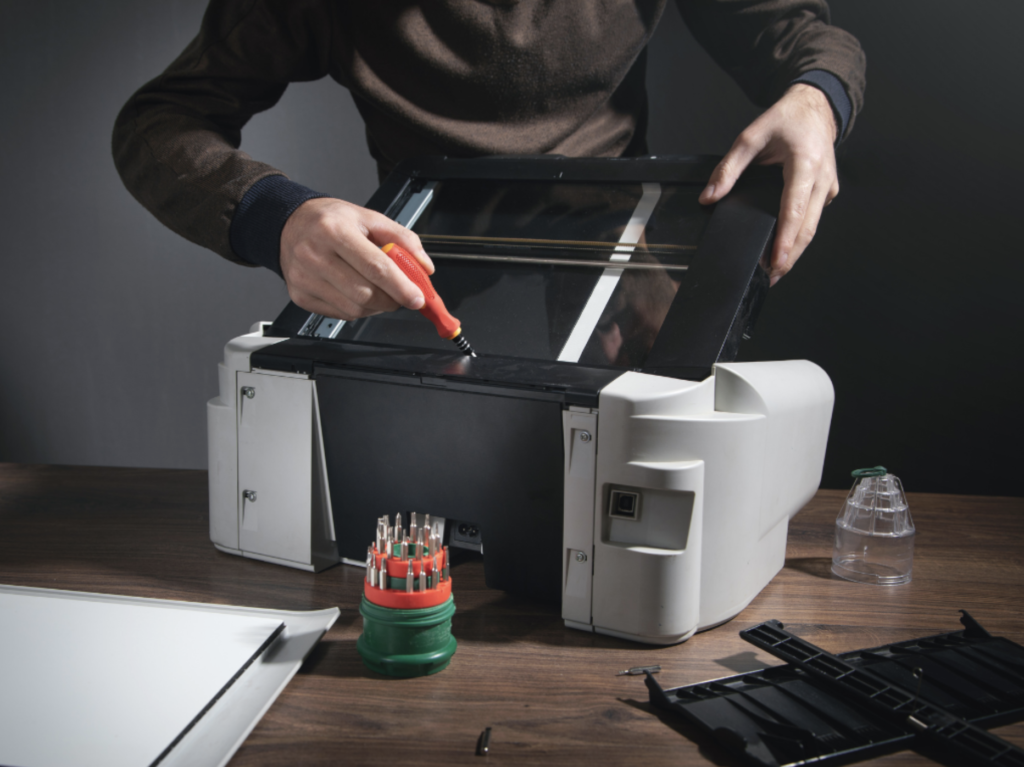
When It’s Time to Ask for Help With Printer Problems
Sometimes, no amount of troubleshooting will solve the issue — especially with aging desktop printers.
It may be time to call Crown Computers if:
- The printer constantly jams
- The printer disconnects from the network regularly
- You replace ink or toner frequently, but prints still fade
- Print jobs disappear before printing
- Your office has multiple printers causing confusion
- Print issues are slowing down your team
A technician can determine whether:
✔ the printer is worth fixing
✔ it should be replaced
✔ networking or software is the real culprit
And we always recommend the most cost-effective path — not unnecessary repairs.
👉 Need professional help with printer issues?
Get expert support now: Contact Crown Computers
Don’t Forget Printer Security
Many businesses don’t realize printers store sensitive information.
Invoices
Employee records
Client documents
Medical or legal files
Before disposing of a printer, always wipe stored data — or let a professional do it.
At Crown Computers, we ensure old printers are:
- securely wiped
- properly decommissioned
- disposed of safely
Protecting your business data matters.

The Easiest Printer Fix of All: Let Us Handle It
Troubleshooting printers takes time — and time away from your business costs money.
As a San Diego-based Managed IT Services provider, Crown Computers keeps businesses running without disruption. From printers to networking to cybersecurity — we handle everything behind the scenes so your team can stay productive.
If you’re tired of Googling:
✔ how to fix a printer
✔ how to troubleshoot a printer
✔ printer fix options
✔ help with printer problems
✔ simple printer fixes
…it may be time for ongoing IT support instead of firefighting.
👉 Schedule a 60-minute consultation and let us take printer frustrations off your plate.
📞 Call: 858-483-8770
📩 Email: sales@crowncomputers.com
💬 Request support: Contact Crown Computers